
Cancel a sale
Empty the cart with Undo, cancel a completed sale with a credit note, correct it, and know who is allowed to do it.
Screenshots are shown in French.
Video
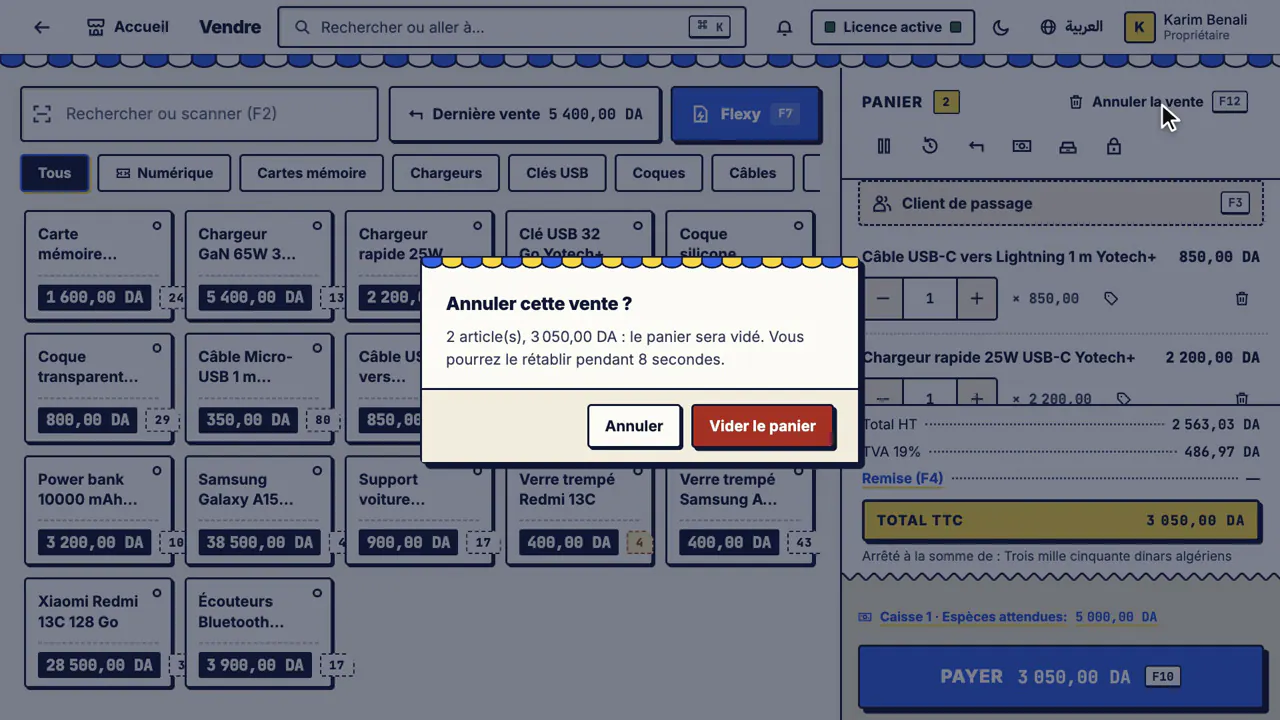
Silent video with captions.
Mistakes at the till happen. Hanouti handles two cases: the current cart (nothing has been paid yet) and a completed sale (a credit note fixes the accounts, the stock and the till, and the original sale stays in the history).
Before you start
- For a completed sale refunded in cash: the till must be open.
Steps
Cancel the current sale
#The cart's Cancel the sale button (key
F12) asks for confirmation: the cart will be emptied, but you can bring it back for 8 seconds.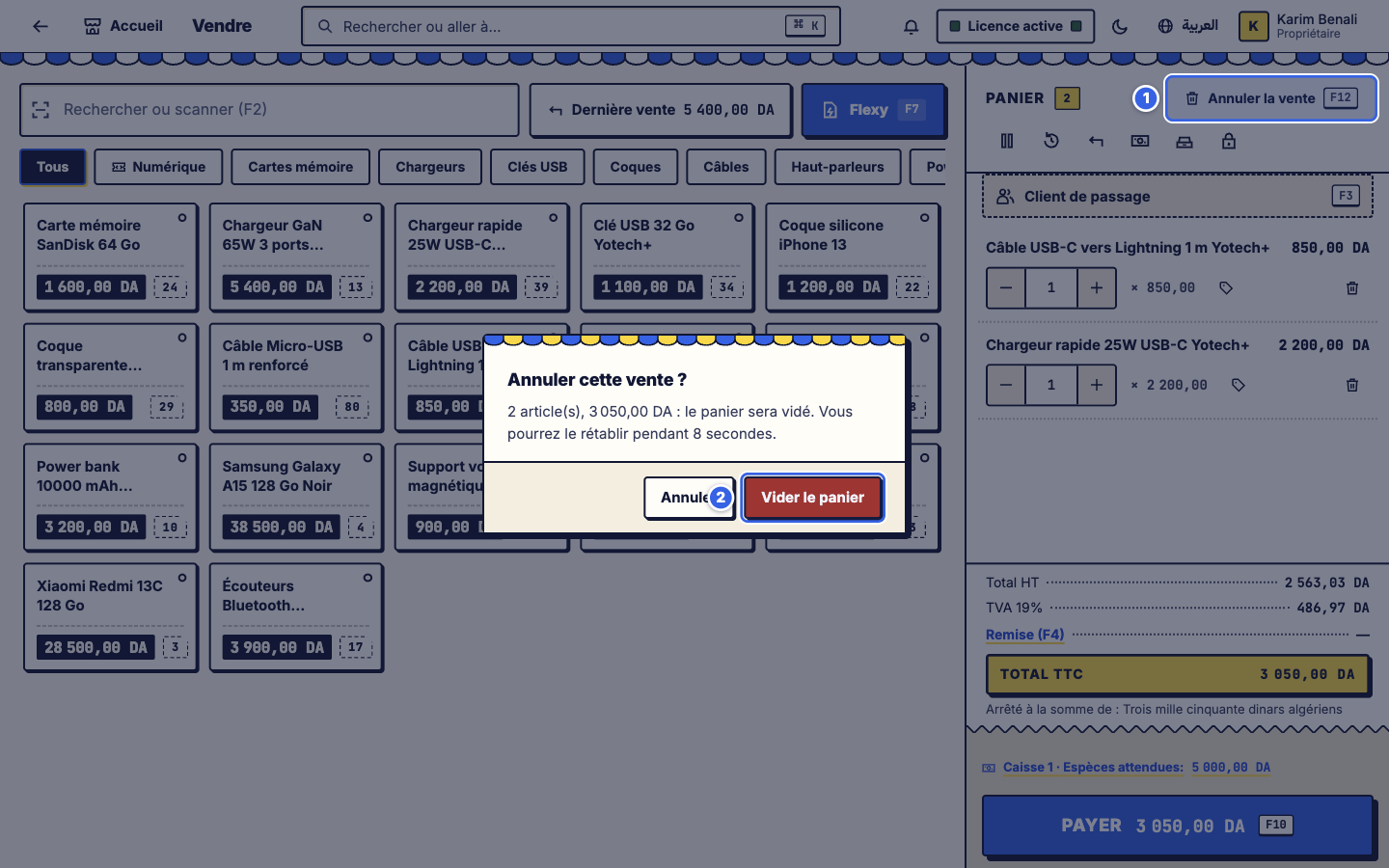
Cancel the current sale - 1Cancel the sale in the cart header.
- 2Empty the cart to confirm (or Cancel to keep it).
Undo within 8 seconds
#A "Sale cancelled" message offers Undo: the cart comes back exactly as it was, even the chosen customer.
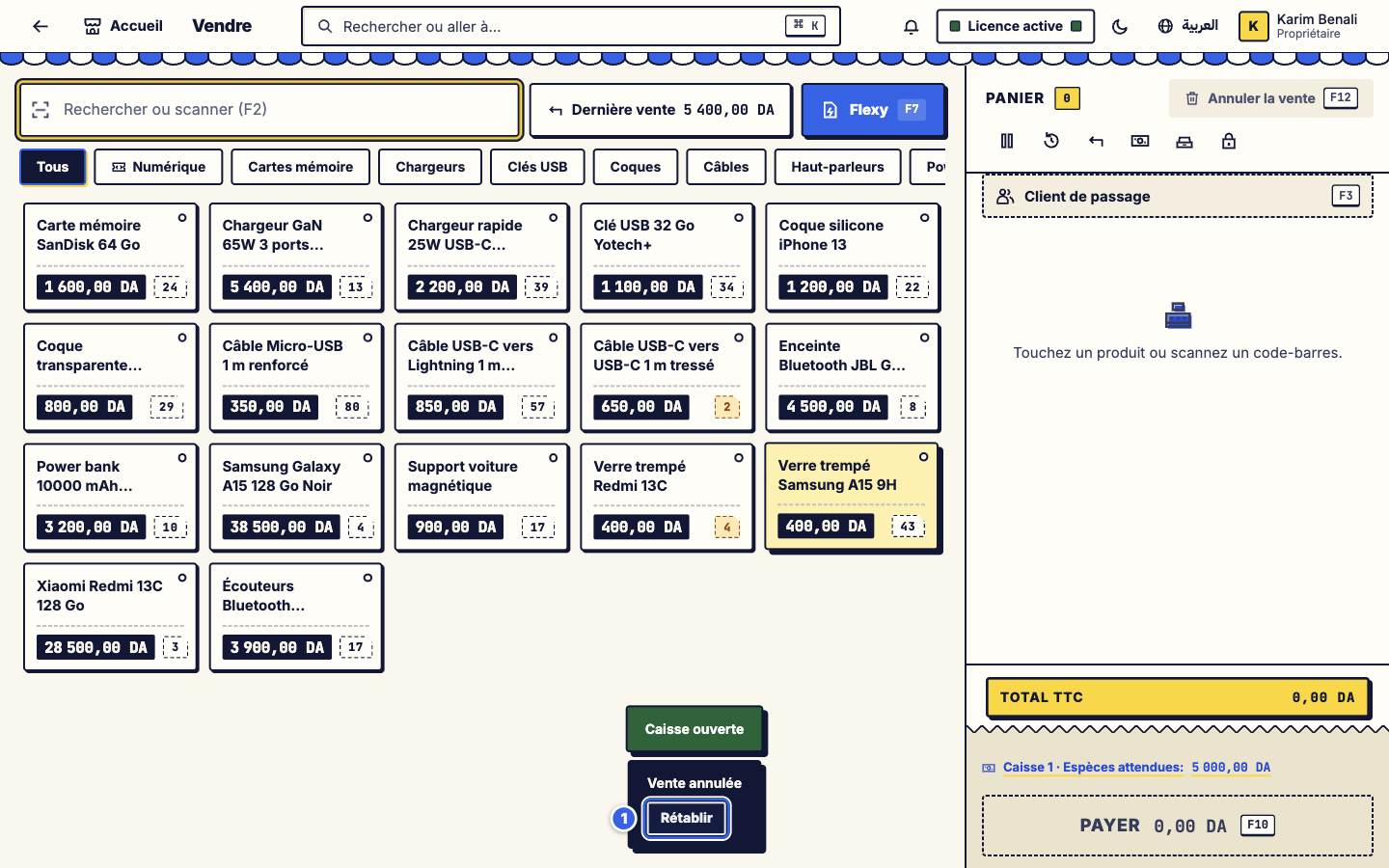
Undo within 8 seconds - 1Undo.
Cancel or correct a completed sale
#From the "Sale recorded" window (Cancel this sale), from the till's Last sale button, or from Documents, open the cancellation window. It shows the amount collected and what was left on credit. Choose how to give the money back (as paid, cash, other), a reason (till mistake, customer changed their mind, defective product, other) and whether the items go back in stock.
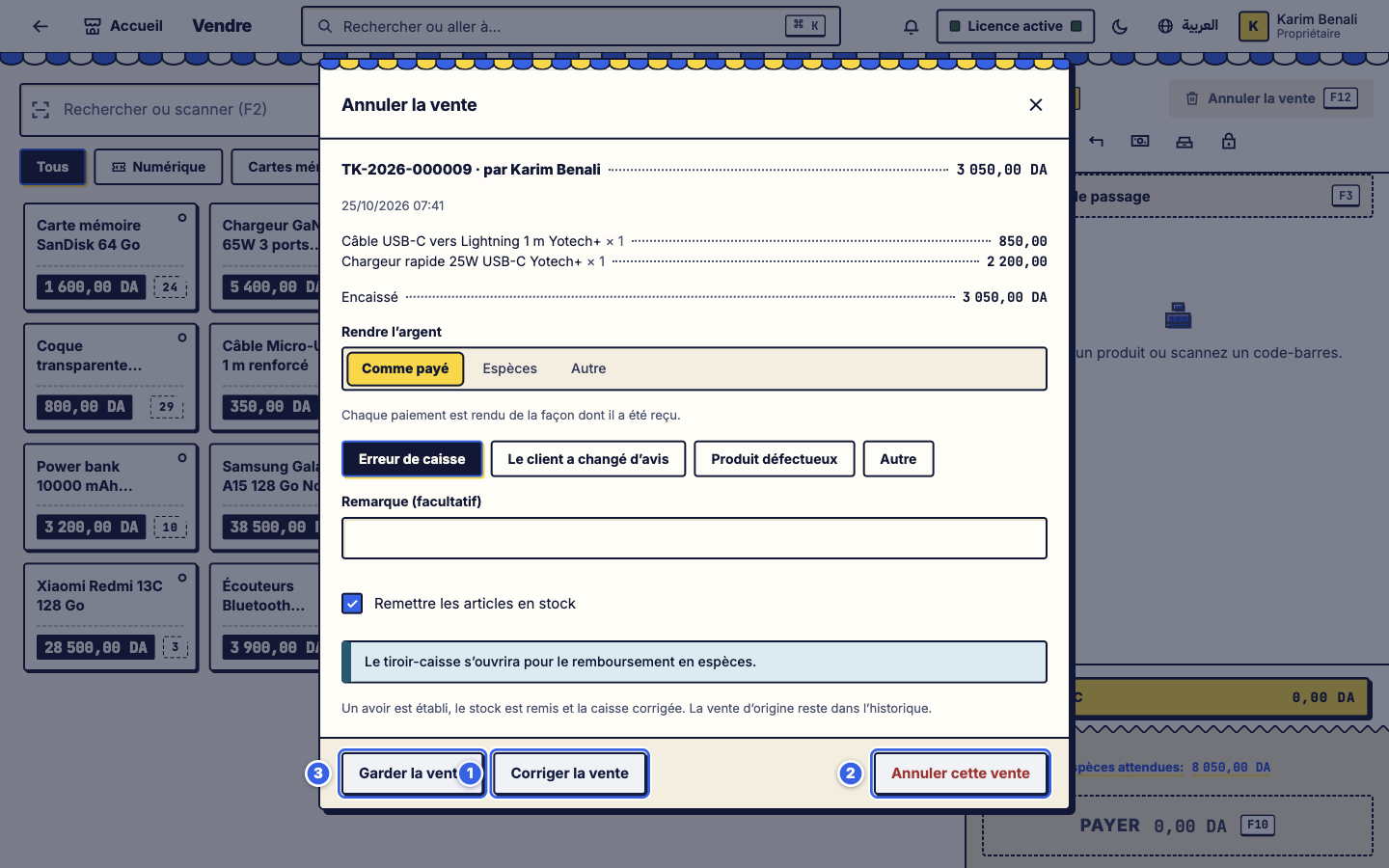
Cancel or correct a completed sale - 1Correct the sale: cancels, then puts the same items back in the cart so you can fix and charge again.
- 2Cancel this sale: issues the credit note.
- 3Keep the sale: changes nothing.
A "defective" product does not go back to sellable stock. If the cash drawer is set up, it opens for a cash refund.The credit note is issued
#Hanouti shows the sale number, the credit note number (
AV-…) and what was given back to the customer or kept as credit on their account.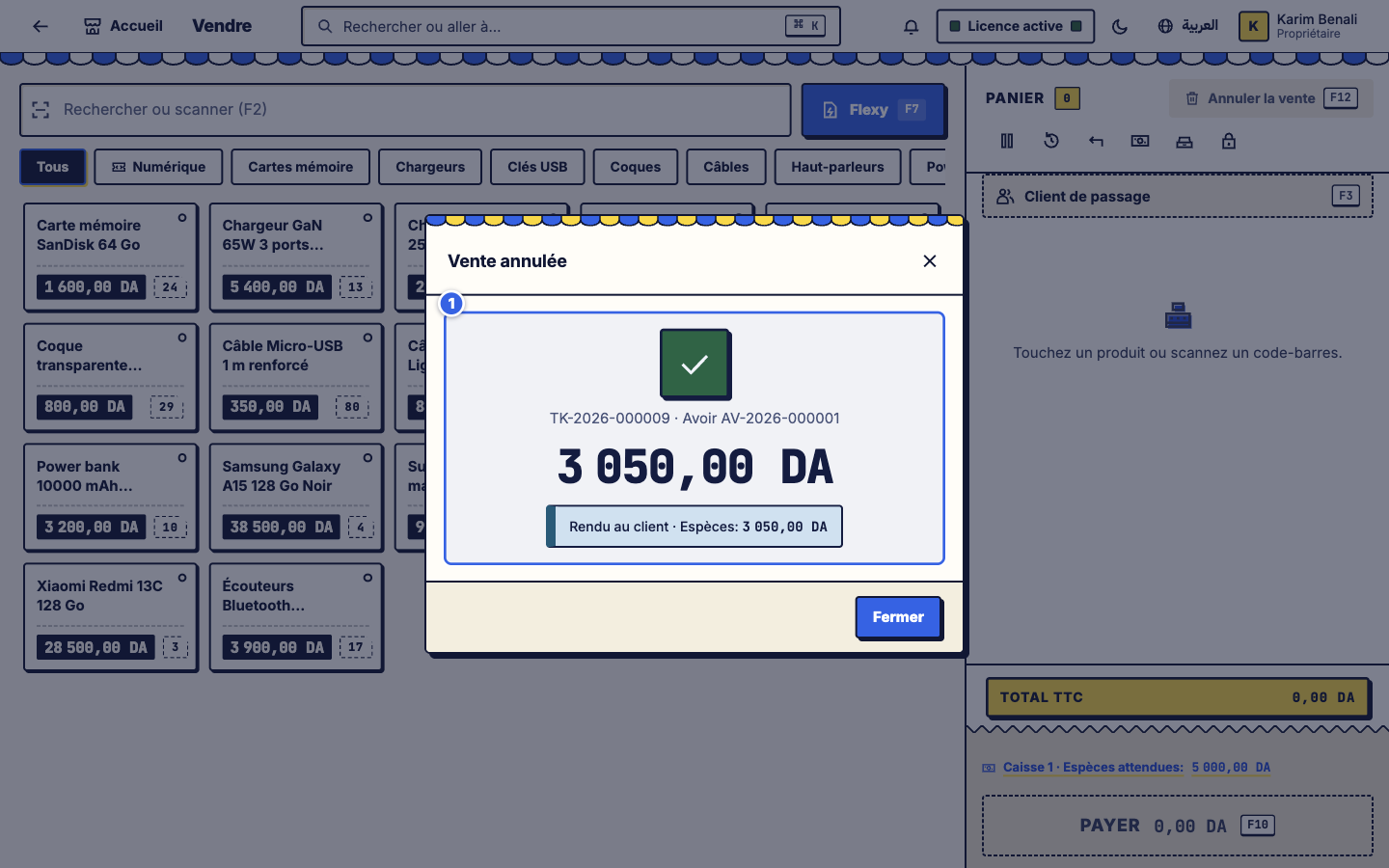
The credit note is issued - 1The summary: credit note, amount given back.
Who can cancel?
#Settings > Shop > Cancelling a sale sets the time limit during which a cashier cancels only their own sale (same till session, same day or a few minutes) and the maximum amount without a PIN. Beyond that, or for a colleague's sale, a manager's PIN is asked. Every cancellation is recorded (who, why); you can also print the credit note, open the drawer and be alerted if too many sales are cancelled.
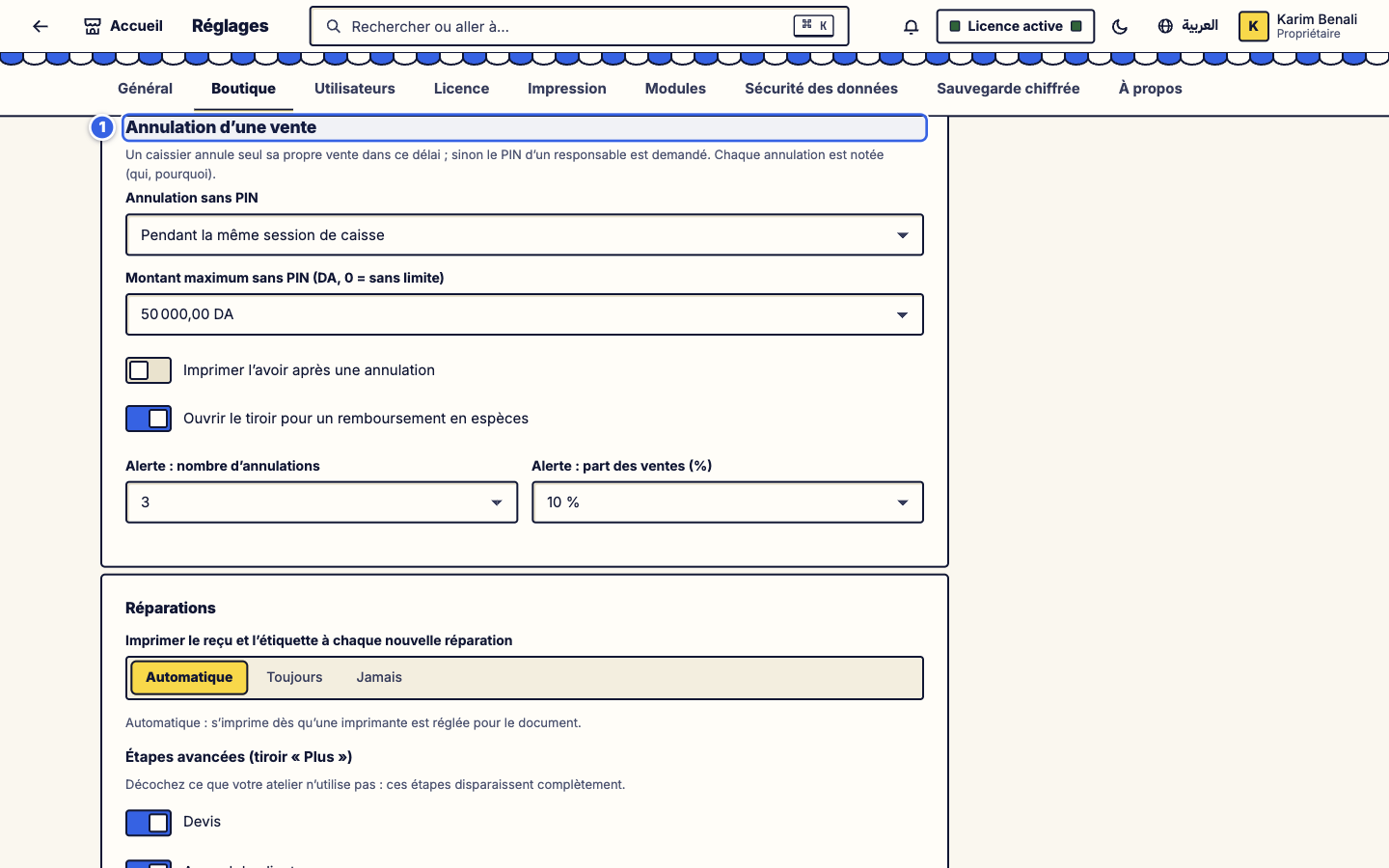
Who can cancel? - 1The Cancelling a sale block.
Some sales cannot be cancelled here: a Flexy top-up already sent or a digital code already delivered (the money has gone to the supplier). A sale already partly returned is completed with Return (F9) (see Sell).
Result
The sale is corrected cleanly: credit note issued, stock restored, till correct, record kept.
If it does not work
"A manager's PIN will be asked"
The sale was made by another employee, or it is too old or too large: ask the manager to enter their PIN (see Employees and PINs).
"Open the till first"
To give cash back, open the till (key F8 for movements).
The customer could not be reloaded after Correct
Choose the customer again with F3: the current cart had been put on hold (F6 to recall it).