
First launch: categories, brands and devices
What Hanouti prepares for you (categories, brands, workshop devices) and how to rename, hide or extend it.
Screenshots are shown in French.
Video
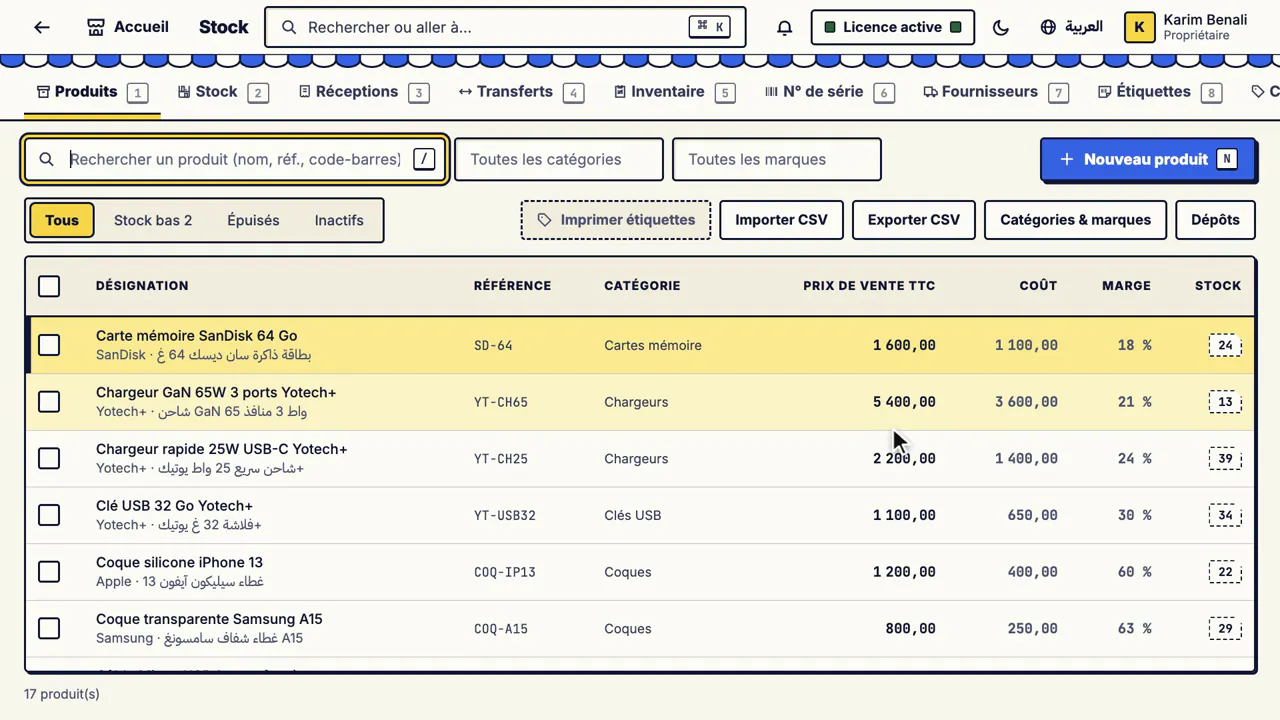
Silent video with captions.
From the very first launch, Hanouti installs ready-made categories, brands and device types, in French and Arabic: you have nothing to type to start sorting your products. This guide shows where to find them and how to adapt them to *your* business.
Before you start
- Hanouti activated (see Get started).
- Stock management permission (the owner and the manager have it).
Steps
See and change the shop type
#Settings > Shop shows the shop type chosen at start-up and the shop's modules: weighing, quick keys, serial no./IMEI, repairs, digital and Flexy, tables and kitchen… Modules marked "Soon" are noted but do not add anything to the screen yet. Your products, sales and customers are never changed.
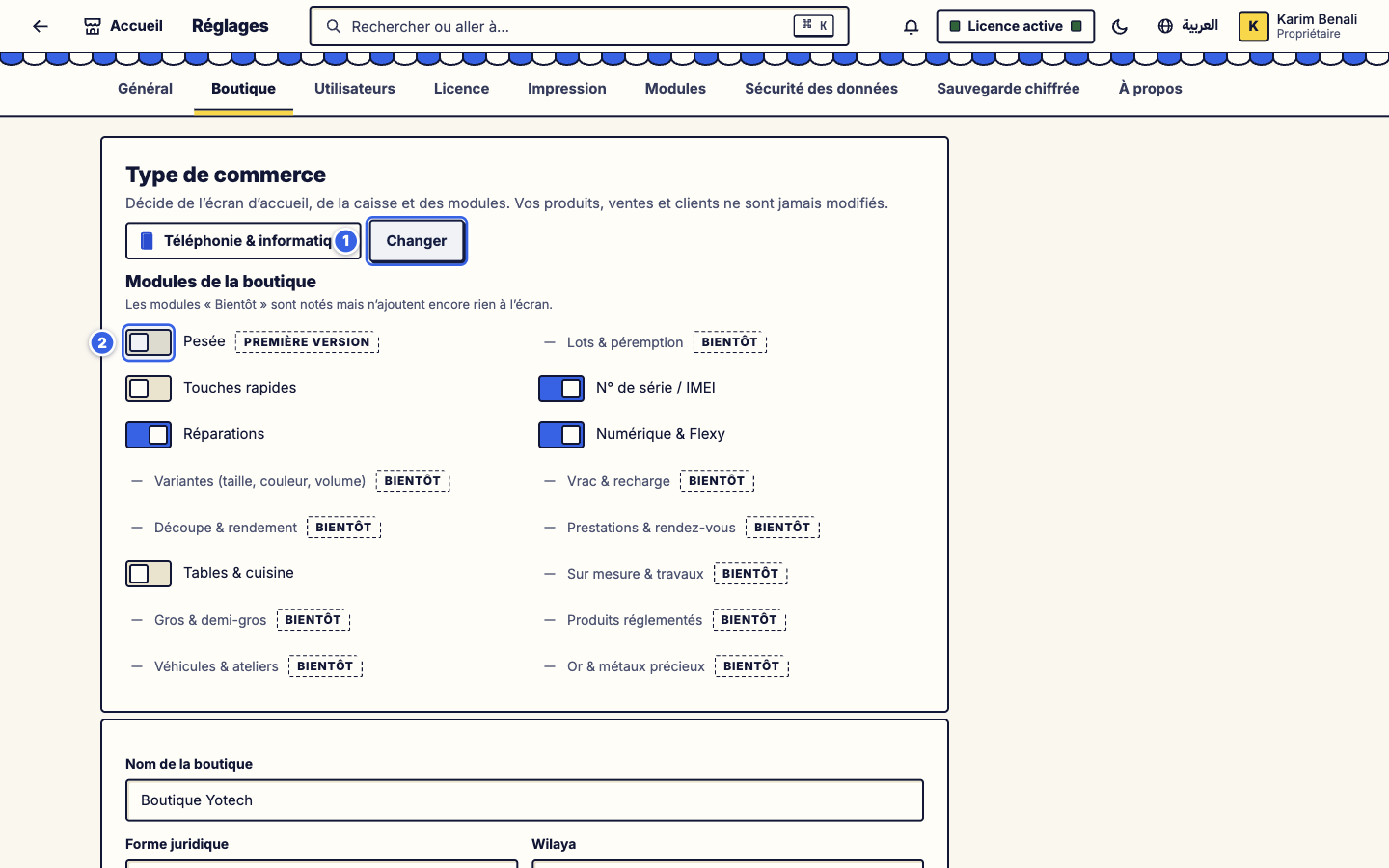
See and change the shop type - 1Change the shop type.
- 2A module you can switch on (here *Weighing*): the switch turns it on or hides it.
Choose another shop type
#Change reopens the shop type screen: tick one or several, or search for one by name. Hanouti adapts the home screen, the till and the modules, without touching your data.
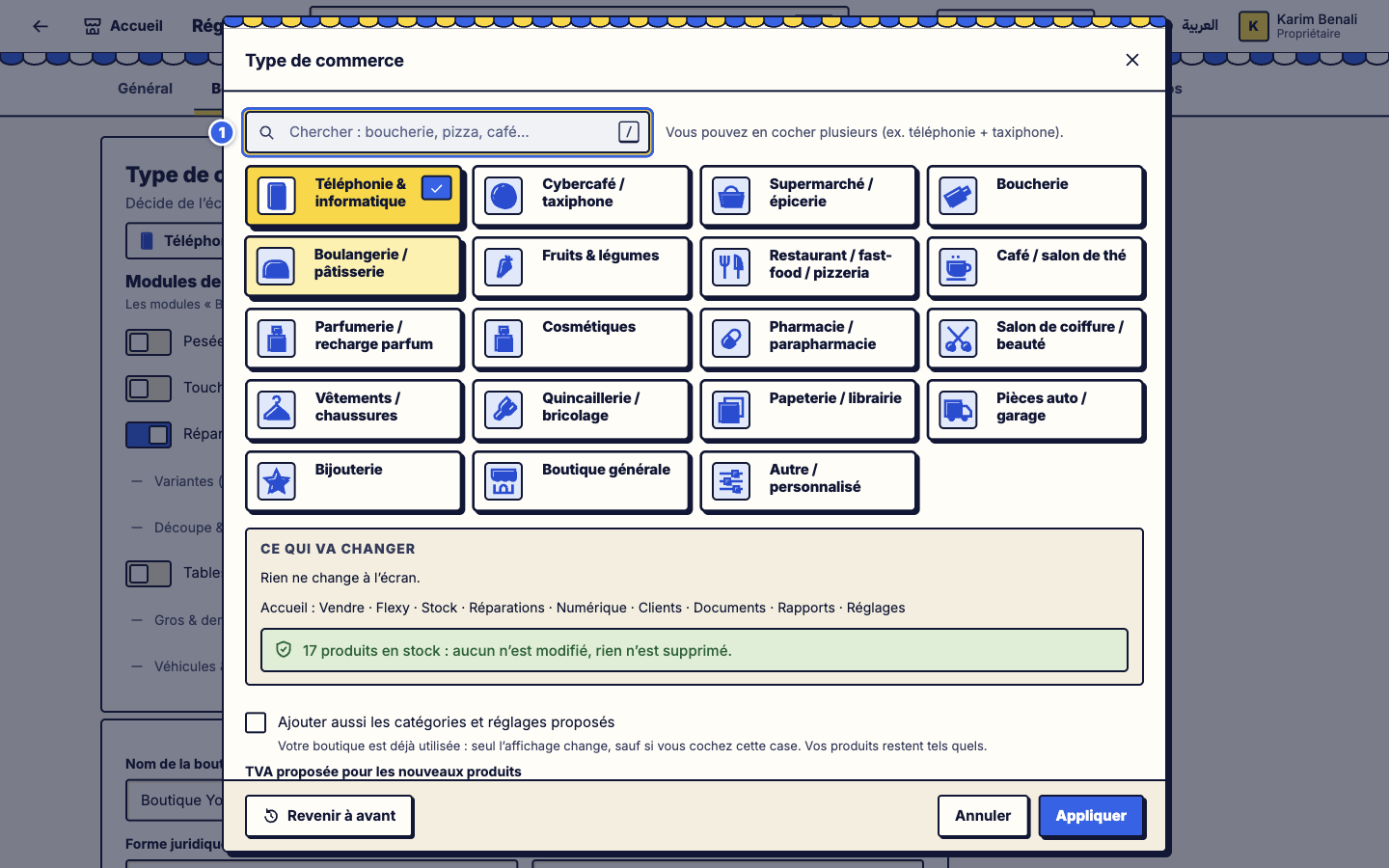
Choose another shop type - 1The search (butcher, pizza, café…).
See the preset categories
#Stock > Categories & brands shows the tree (category > subcategory) with the French and Arabic names. The original items carry the DEFAULT label; the counter at the top shows how many categories and brands are available.
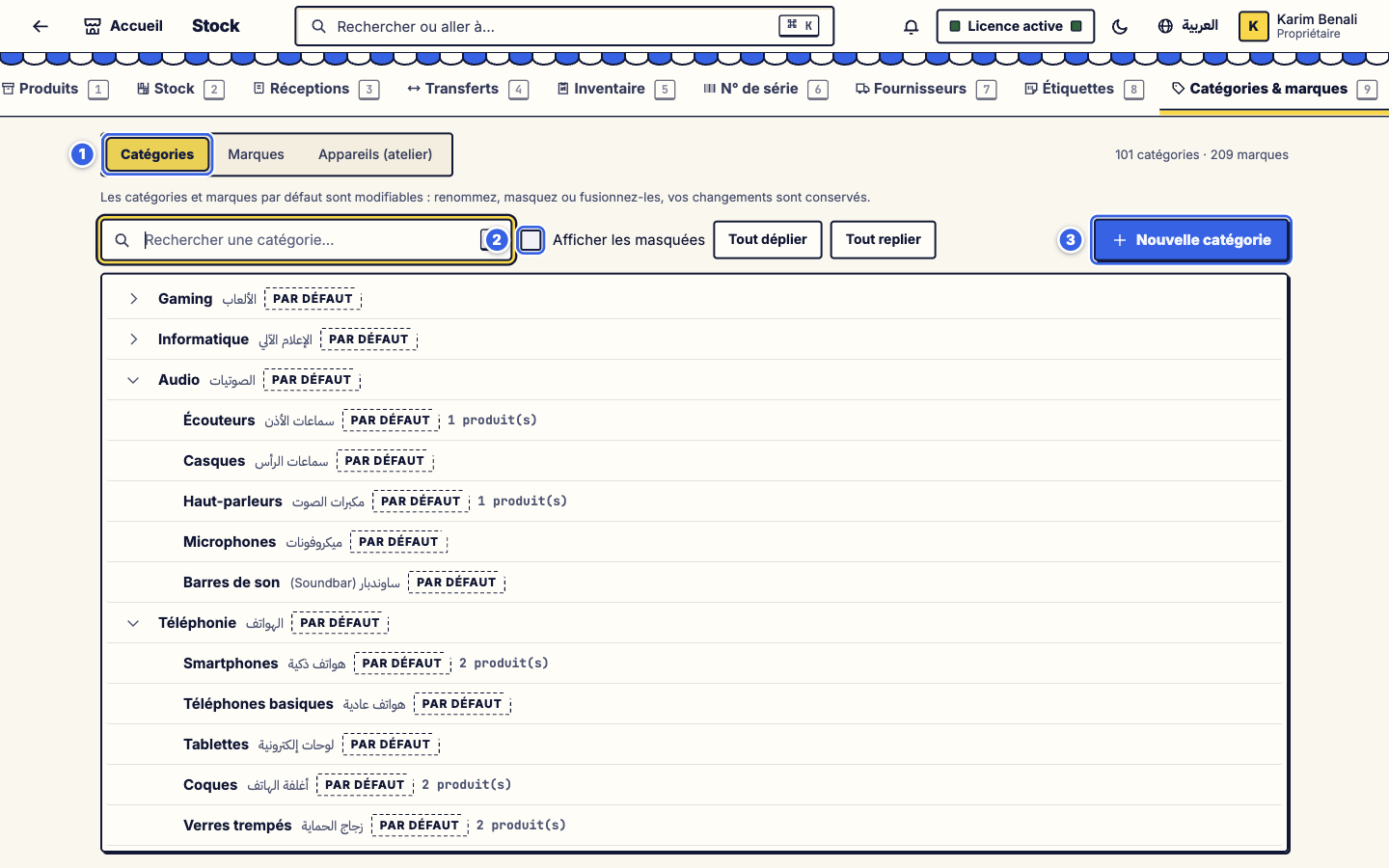
See the preset categories - 1The three lists: Categories, Brands, Devices (workshop).
- 2Search for a category (key
/). - 3New category to add your own.
Rename a category
#Hover over a row, then Edit: change the French name, the Arabic name or the parent. Your changes are kept, even if the default categories change later.
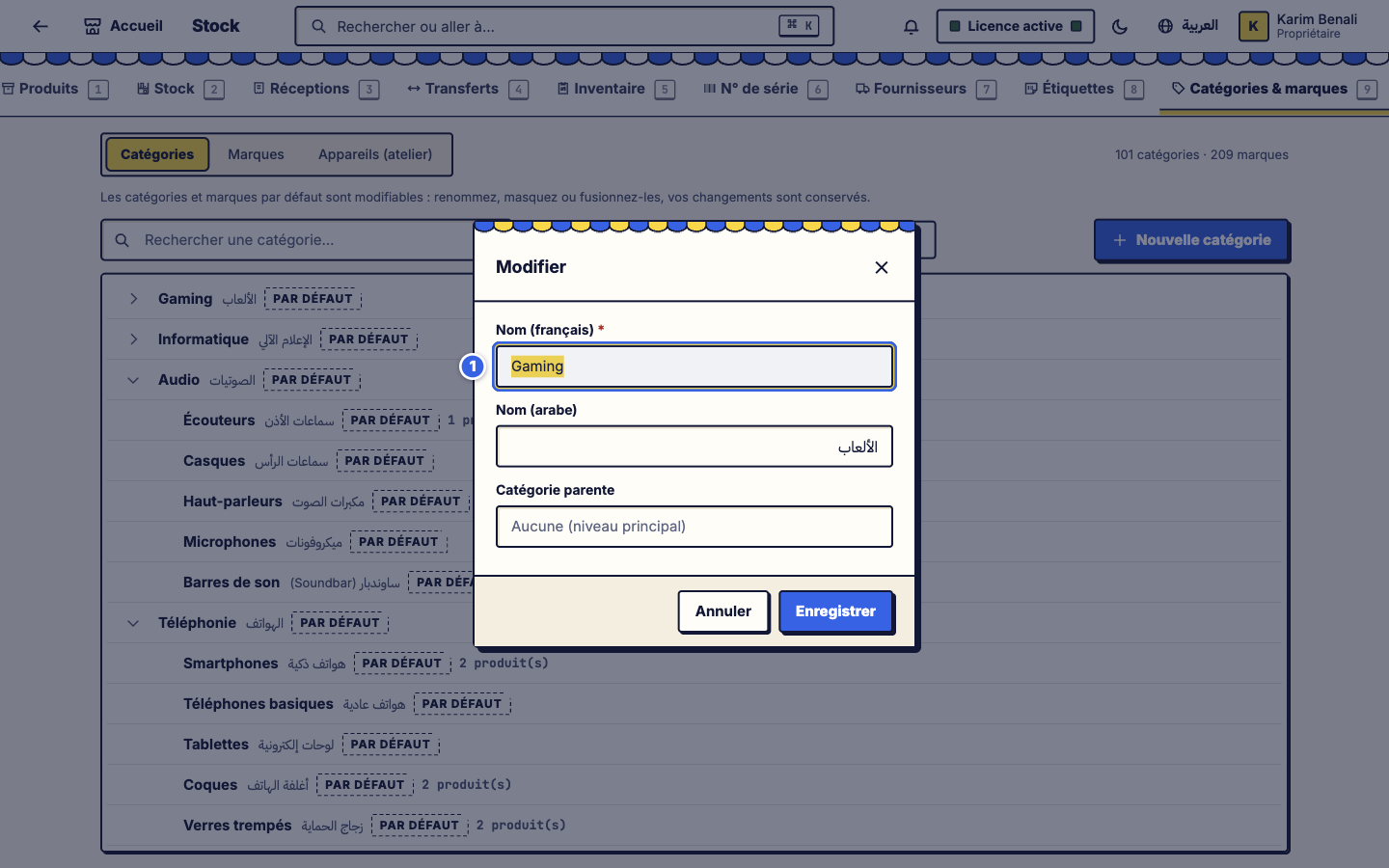
Rename a category - 1The name (French); the Arabic name is below it.
Hide what you do not need
#Hide removes a category from the lists without deleting your products. Merge combines two categories into one.
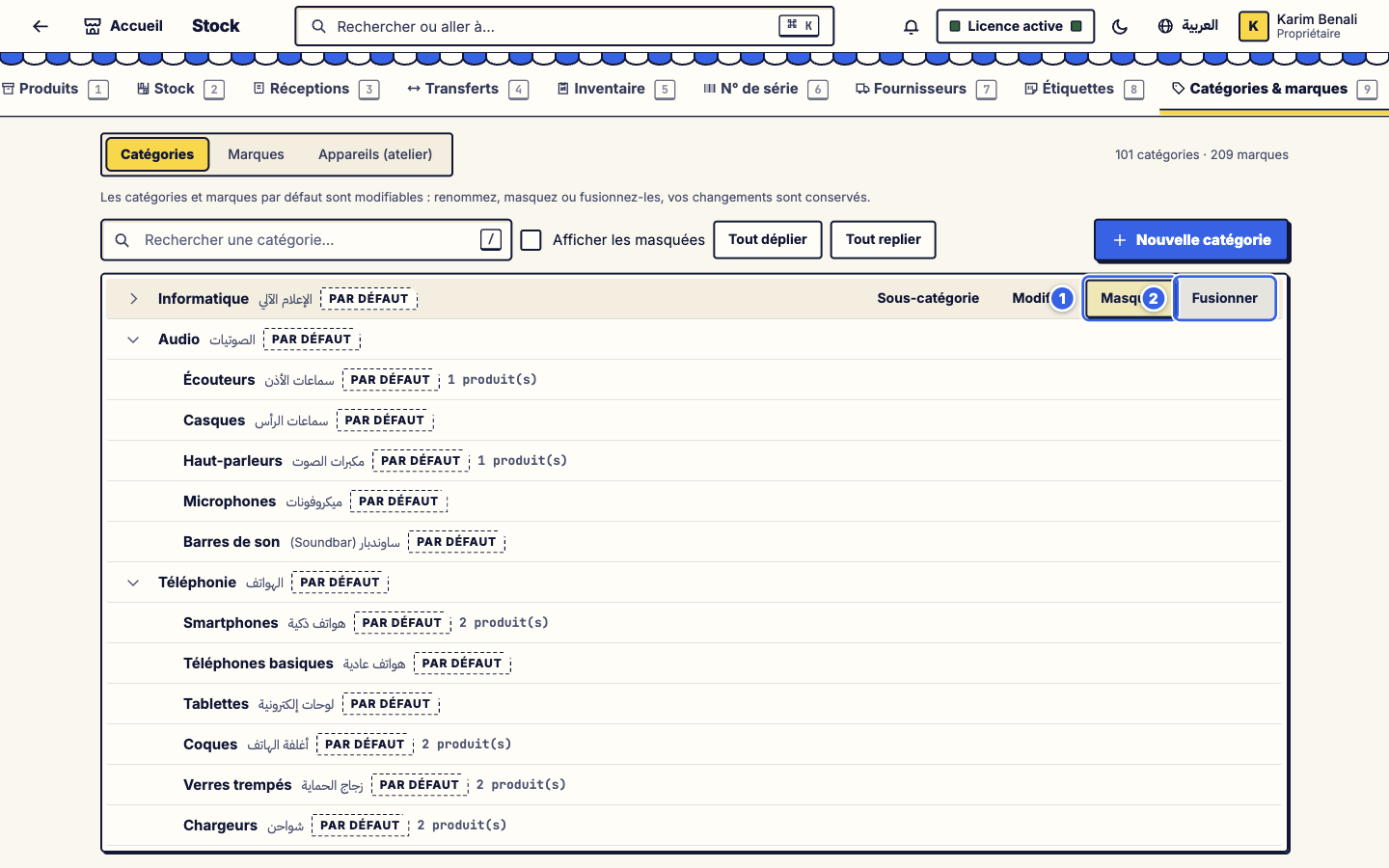
Hide what you do not need - 1Hide.
- 2Merge.
Find a hidden category again
#Tick Show hidden: they come back, marked HIDDEN, and can be restored.
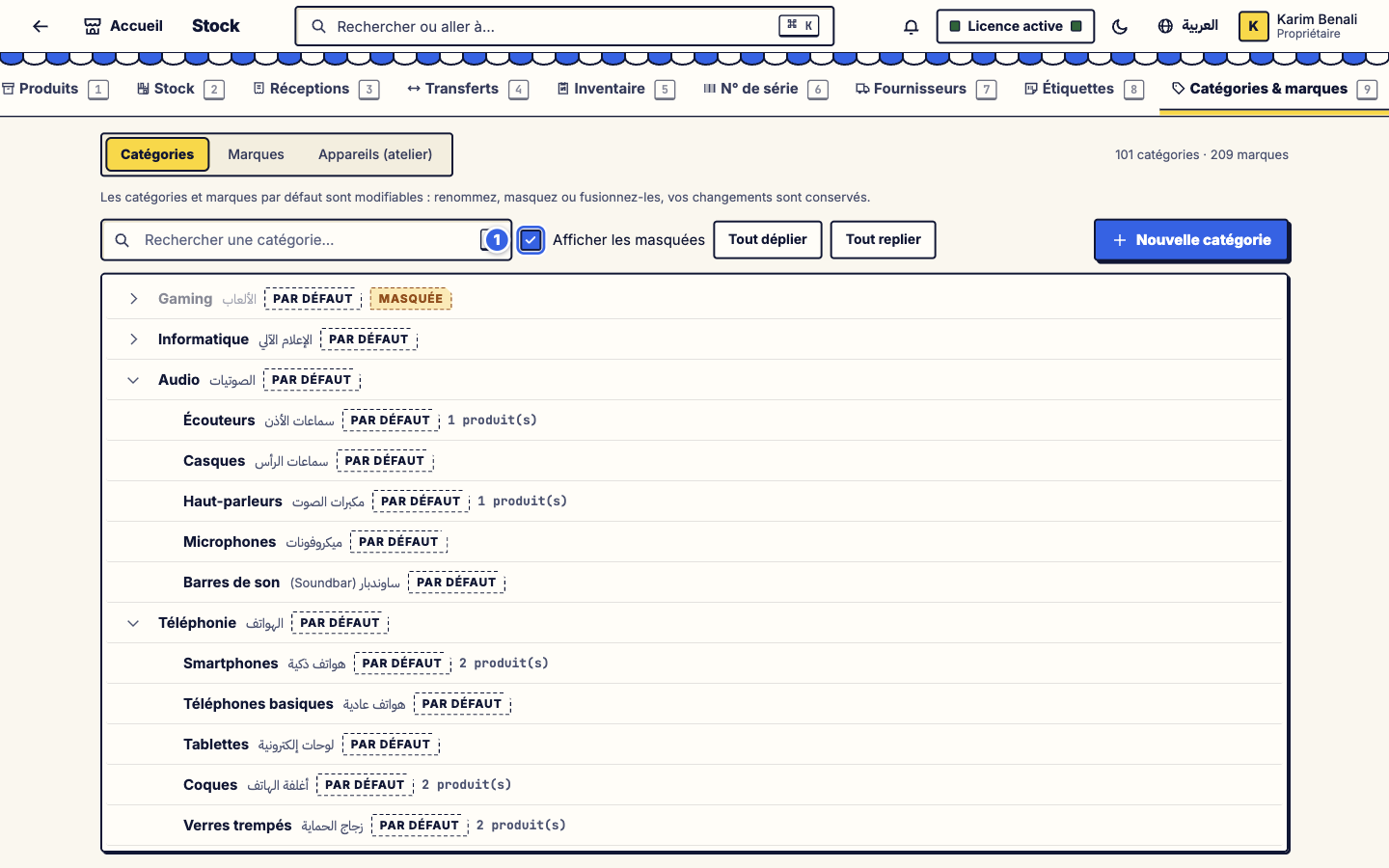
Find a hidden category again - 1Show hidden.
Add your own category
#New category: a name, optionally the Arabic name and a parent category (leave empty for the top level).
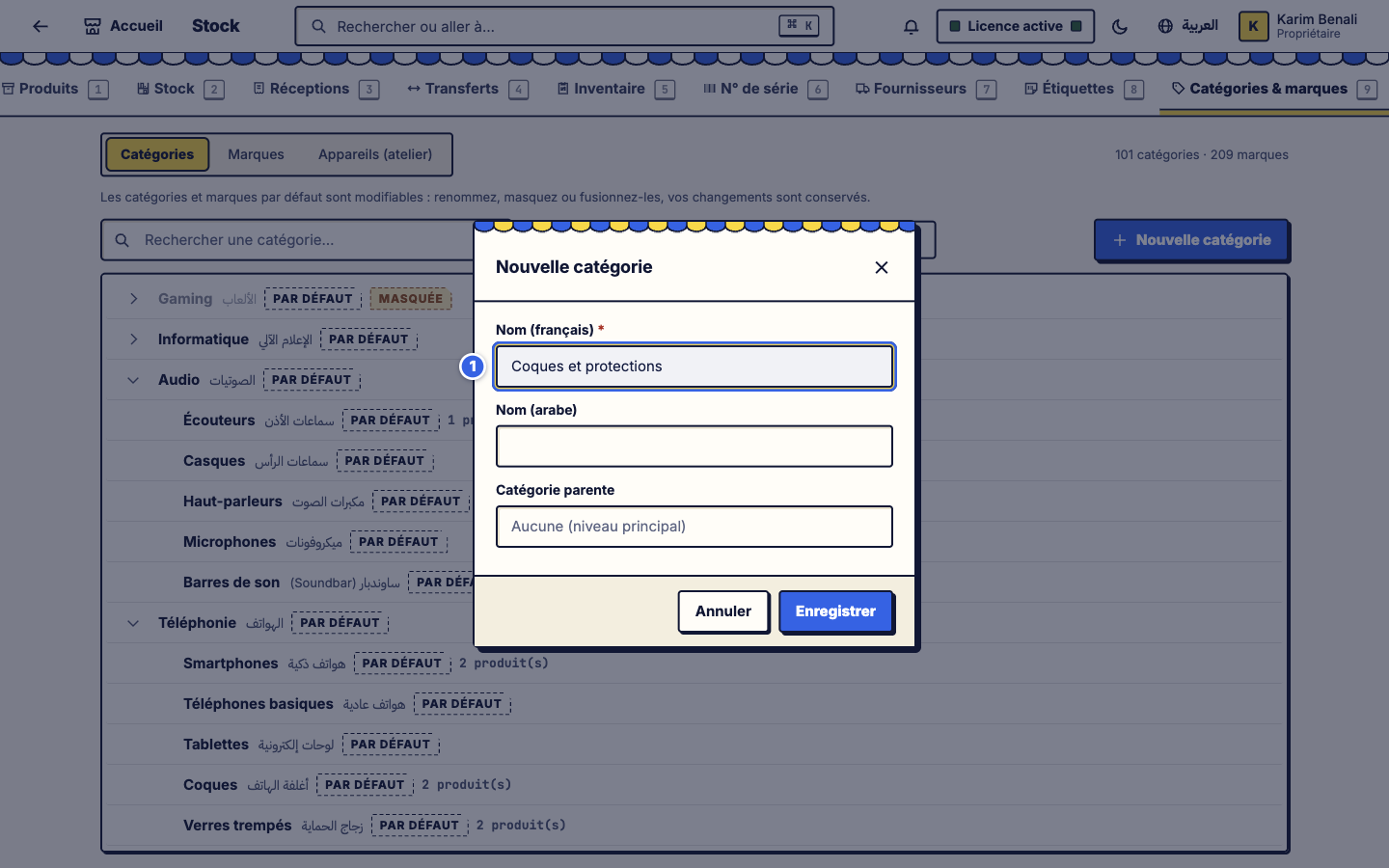
Add your own category - 1The category name.
Brands
#The Brands tab lists the known brands (over 200). Add your own in the "Add a brand…" field; you can also hide or rename them.
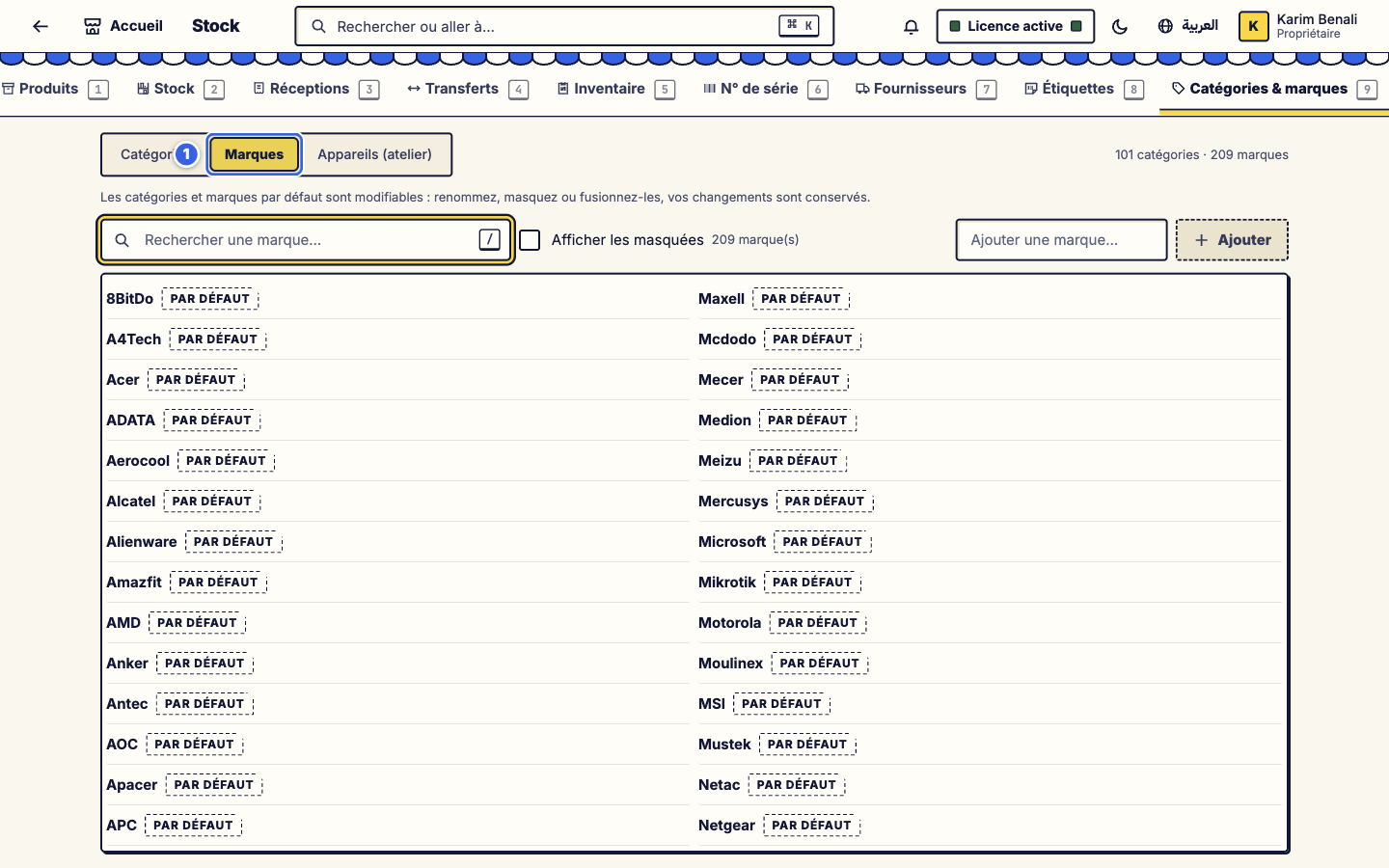
Brands - 1The Brands tab.
Workshop devices
#Devices (workshop) feeds the repair entry form: device types (smartphone, tablet, laptop…), brands, models and common faults. What you type when taking in a device is remembered automatically.
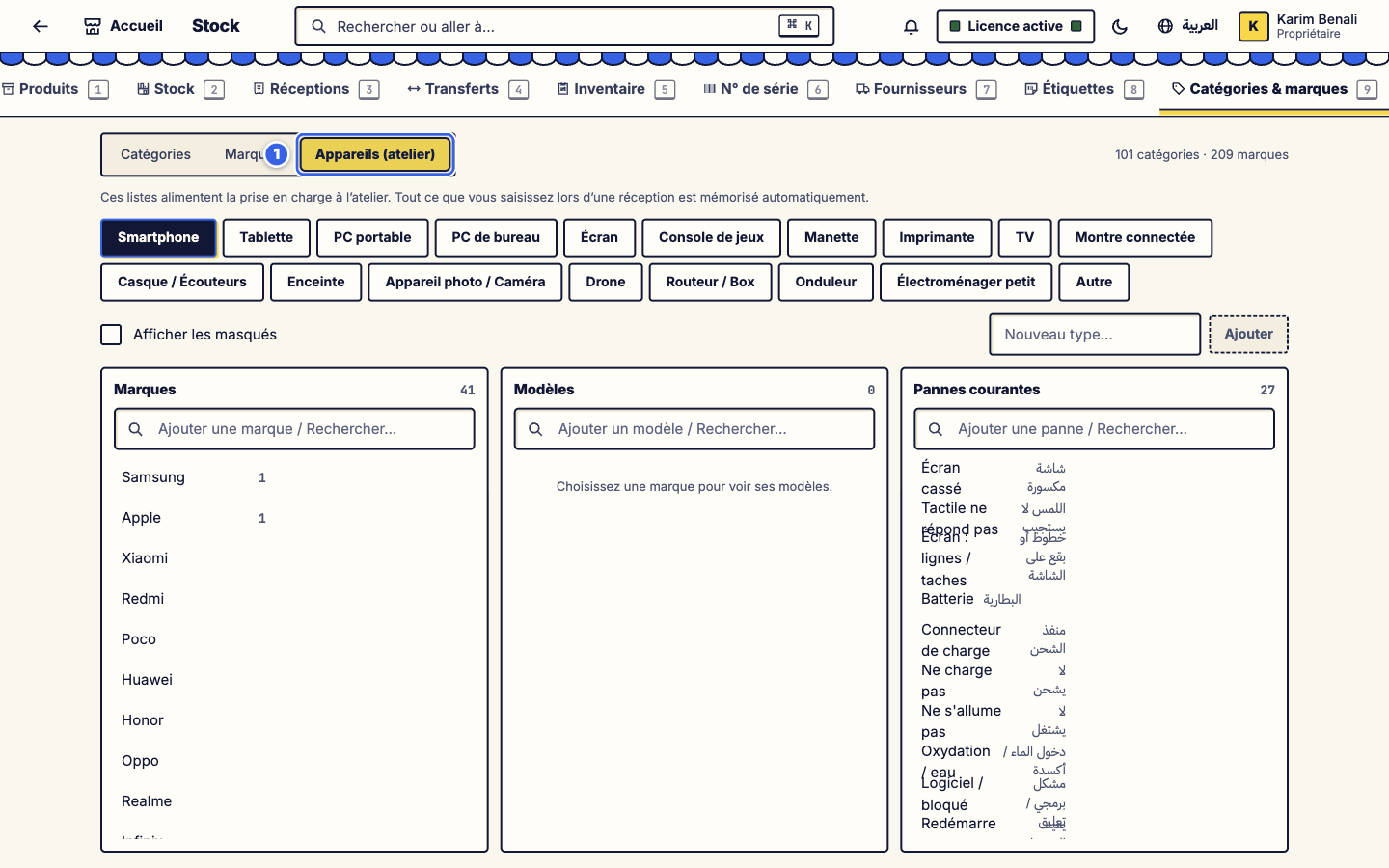
Workshop devices - 1The Devices (workshop) tab. Add a type with "New type…".
Result
Your starting catalogue reflects your business: categories renamed or hidden, brands added, workshop devices ready for repairs.
If it does not work
I cannot find a category
Tick Show hidden or use the search: it may have been hidden.
I hid a category by mistake
Show the hidden ones, then restore it: its products were never deleted.
Arabic names display badly in the faults list
In the workshop's common faults list, long lines may overlap; widen the window. The issue has been reported.